How to Blend Multiple Garments into a New Design with AI?
Style3D AI Design Variations lets you blend design elements from multiple reference images to generate fresh garment concepts. This step-by-step guide covers the full workflow from uploading your base and reference images to generating new design directions.

Introduction: What is Design Variations?
Combining two garments into something new sounds straightforward until you actually try it. Keeping the silhouette from one piece, the texture from another, and the proportions from neither usually means hours of manual sketching before you have anything worth showing.
Design Variations handles the blending for you. Upload a base garment and a reference image, describe the direction you want, and Style3D AI merges the design elements into a fresh garment concept. The result is a realistic, high-quality visual you can review, download, or bring into the next stage of your production workflow.
Quick Start Guide
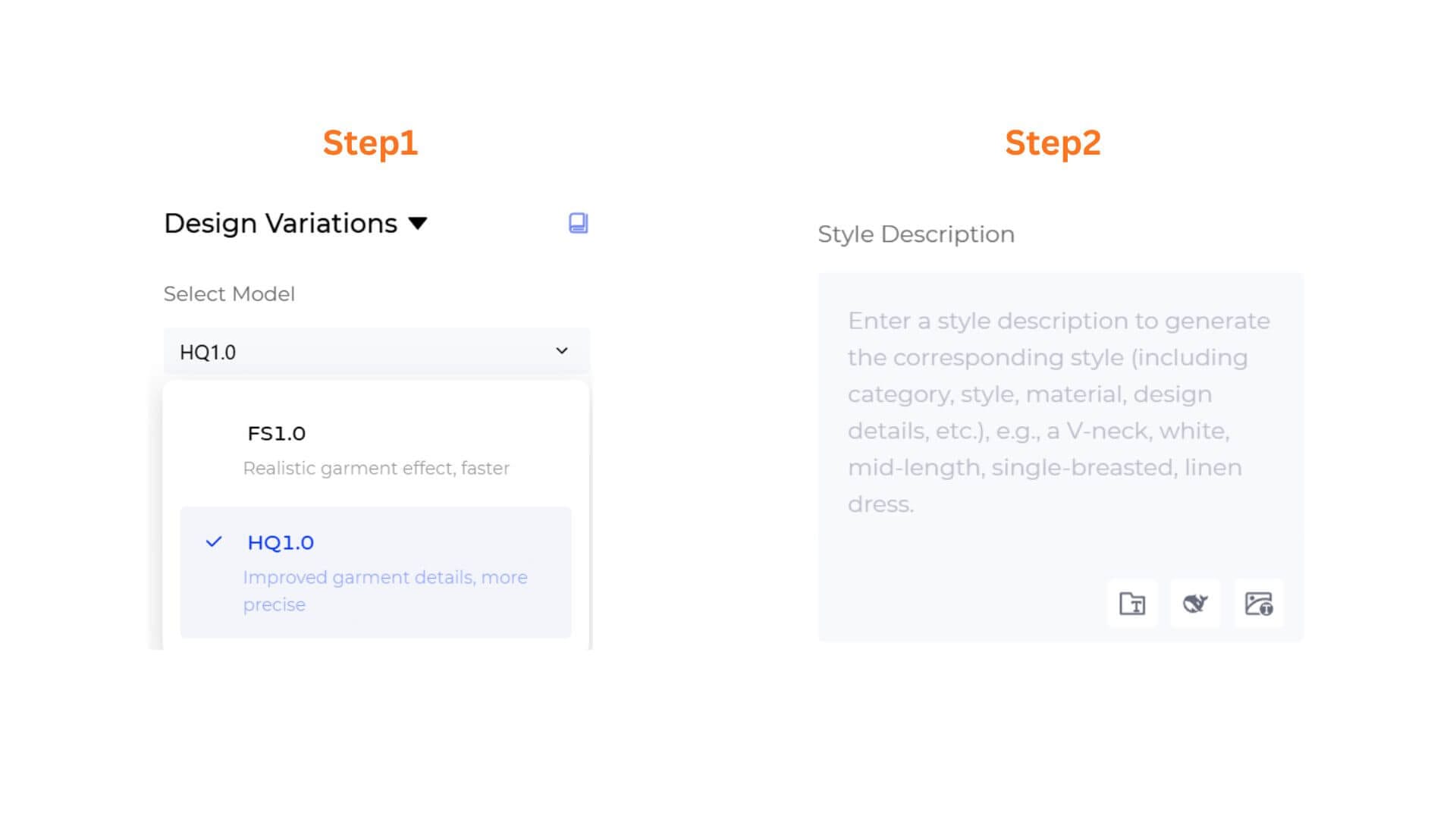
Step 1: Choose Your AI Generation Model
Select the processing engine according to your needs:
- FS1.0 (Fast Speed): Best for rapid iteration and quick concept exploration.
- HQ1.0 (High Quality): Optimized for refined, retail-ready visuals with more precise fabric and garment details.
Step 2: Write Your Style Description
In the Style Description box, describe how you want the AI to blend your two reference pieces. For best results, be specific about which elements to take from each garment: silhouette, neckline, sleeves, texture, fabric, color, or any other structural details you want to carry over or adjust.
Example: "Take the cropped silhouette and double-breasted buttons from the first image, apply the plaid texture and color palette from the second."
Use the icon toolbar beneath the text field to optimize your description.
- Prompt Manager: Click to open the side panel to search, manage, or add custom prompt templates to your workspace.
- Opt Prompt: Click to instantly expand a simple idea into professional, highly descriptive prompt options.
- Rev Prompt: Click to upload an inspiration or trend reference photo, automatically reverse-engineering the visual into text inside your box.
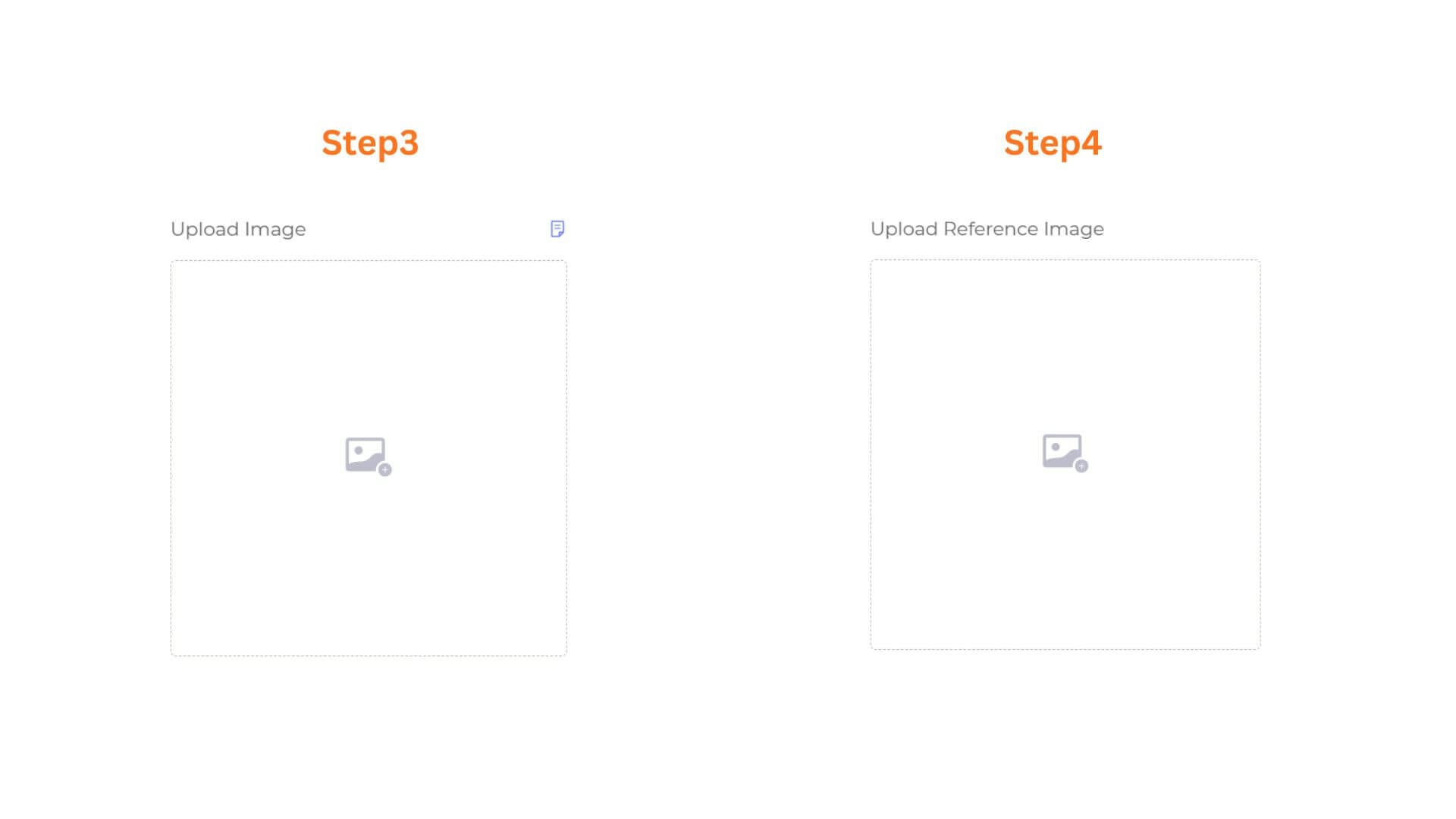
Step 3: Upload Your Base Image
Click the Upload Image box to add the primary garment you want to use as the design foundation.
For better results, please upload materials according to the requirements below:s
Supported Image formats: JPG、JPEG、PNG、WEBP、AVIF、BMP,Size range: 1 KB - 20 MB,Maximum image width and height: 4096x4096px
Step 4: Upload Your Reference Image
Click the Upload Reference Image box to add the second garment whose elements you want to blend into the base design.
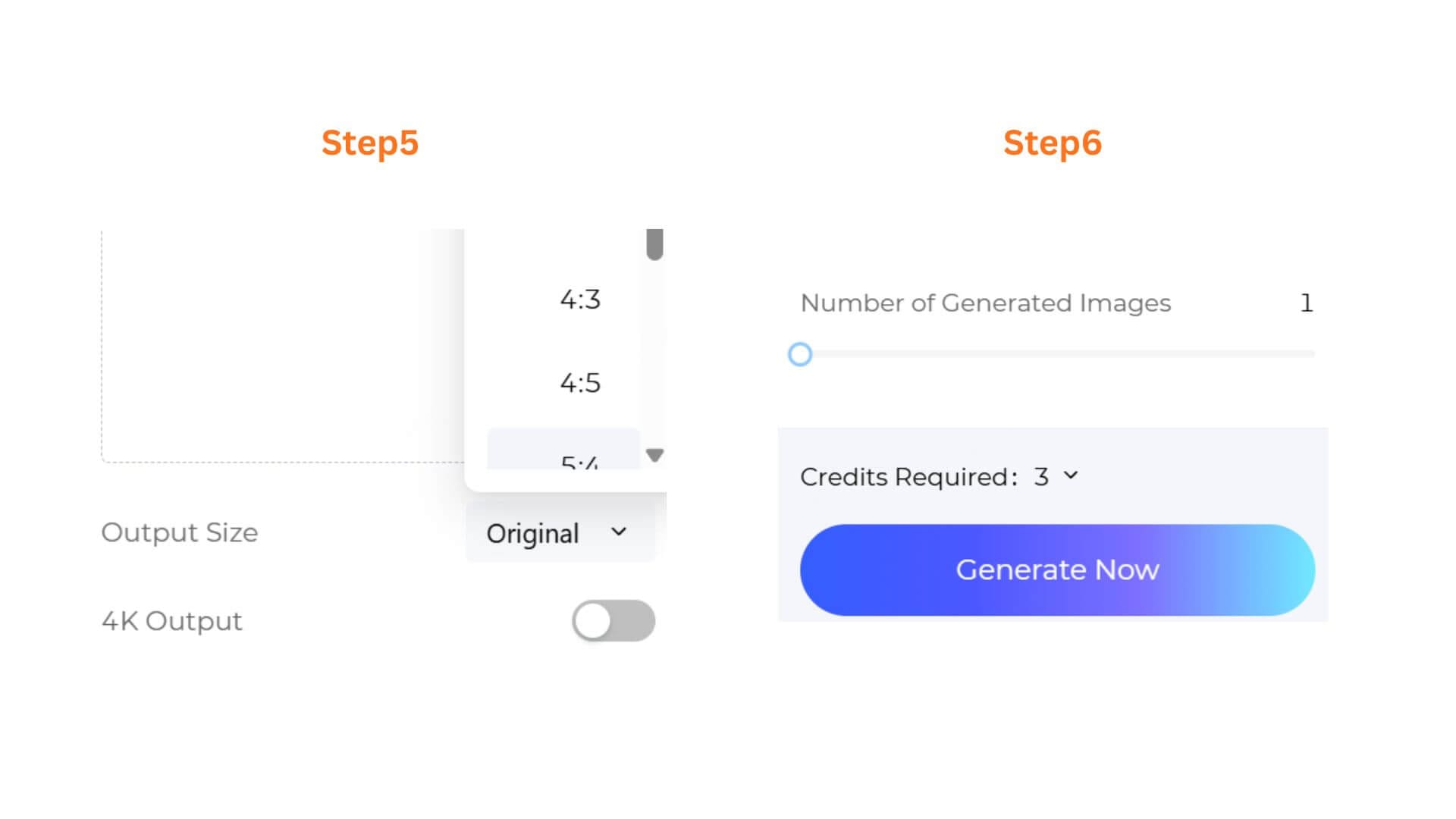
Step 5 (HQ1.0 only): Configure Output Size & Toggle 4K Resolution
- If you selected HQ1.0, you can select an Output Size to match your intended use, and toggle 4K Output on for ultra-high-definition renders suited for client presentations or premium marketing assets. These options are not available on FS1.0.
- Select an Output Size that matches your intended use.
Step 6: Set Batch Quantity & Generate
Use the slider to choose how many design variations you want in a single run, from 1 to 4 images. Check the Credits Required counter, then click the gradient Generate Now button. Within moments your blended design is ready to view, download, or continue editing using Style3D's wider ecosystem.
Pro-Tips
Be Specific About What to Take From Each Piece
The more clearly you describe which elements to pull from each garment, the more accurate the blend will be. Vague prompts like "combine these two" give the AI too much freedom and often produce unexpected results. Tell it exactly what to keep: the silhouette from the first image, the texture from the second, or the color palette from neither.
Choose Garments with Complementary but Contrasting Elements
The most interesting results come from pieces that share a general aesthetic but differ in one or two key dimensions, such as a structured blazer and a flowing maxi dress, or two tops with very different fabrics but similar cuts. Pieces that are too similar tend to produce subtle variations rather than genuinely new directions.
Use the Batch of 4 to Compare Directions
Generating four variations at once lets you see how the AI interprets the same prompt slightly differently each time. This is useful for identifying which design direction is worth developing further before committing to a single output.
Iterate With Small Prompt Adjustments
If the first batch is close but not quite right, adjust one specific element in your Style Description rather than rewriting the whole prompt. Changing "apply the plaid texture from the second image" to "apply a subtle plaid texture inspired by the second image" can meaningfully shift the result without losing the overall direction you established.
Frequently Asked Questions
Q: How different do the two uploaded garments need to be?
A: There is no requirement for how similar or different the two pieces need to be. However, garments with clearly distinct elements, such as different silhouettes, fabrics, or color palettes, tend to produce more visually interesting merged results. If the two pieces are very similar, the output may look like a minor variation rather than a new design direction.
Q: My blended design does not look the way I described. What should I do?
A: The most common cause is a prompt that is too general. Instead of describing the overall mood you want, try specifying exactly which structural element to take from each garment. For example, rather than "modern and minimalist," try "squared shoulders and clean lapels from the first image, matte black fabric from the second." Regenerating with a more precise description usually produces significantly different results.
Q: Can I use Design Variations to generate colorway options rather than structural changes?
A: Yes. If you upload two garments with the same silhouette but different color palettes, and describe the color direction in your Style Description, the AI will focus on blending the color and material elements rather than the structure. This makes Design Variations useful for colorway exploration as well as full design merging.
Written by
What's Next?
How to Edit Specific Garment Areas and Details Without Starting Over?
Small garment edits should not require a full redesign. Style3D AI Garment Refine lets you modify specific areas and details of any existing garment image directly, generating a realistic updated visual in seconds. This guide covers the full workflow from upload to final output.