How to Transform Text Prompts into Striking Apparel Visuals with AI?
Turn written descriptions into apparel visuals with Style3D AI "Text to Design".This guide covering model selection, prompt and pro tips.

Introduction: What is Text-to-Design ?
Getting a garment idea out of your head and into something you can actually show someone takes time. You sketch, revise, produce technical drawings, and revise again. Most of that work happens before anyone has seen a single visual.
Text to Design changes that starting point. You describe what you have in mind: the category, the fabric, the silhouette. Style3D AI then generates a high-fidelity visual with accurate drape, realistic texture, and real garment construction. Whether you are running a quick concept test or putting together a client mood board, the design process starts the moment you start typing.
Quick Start Guide
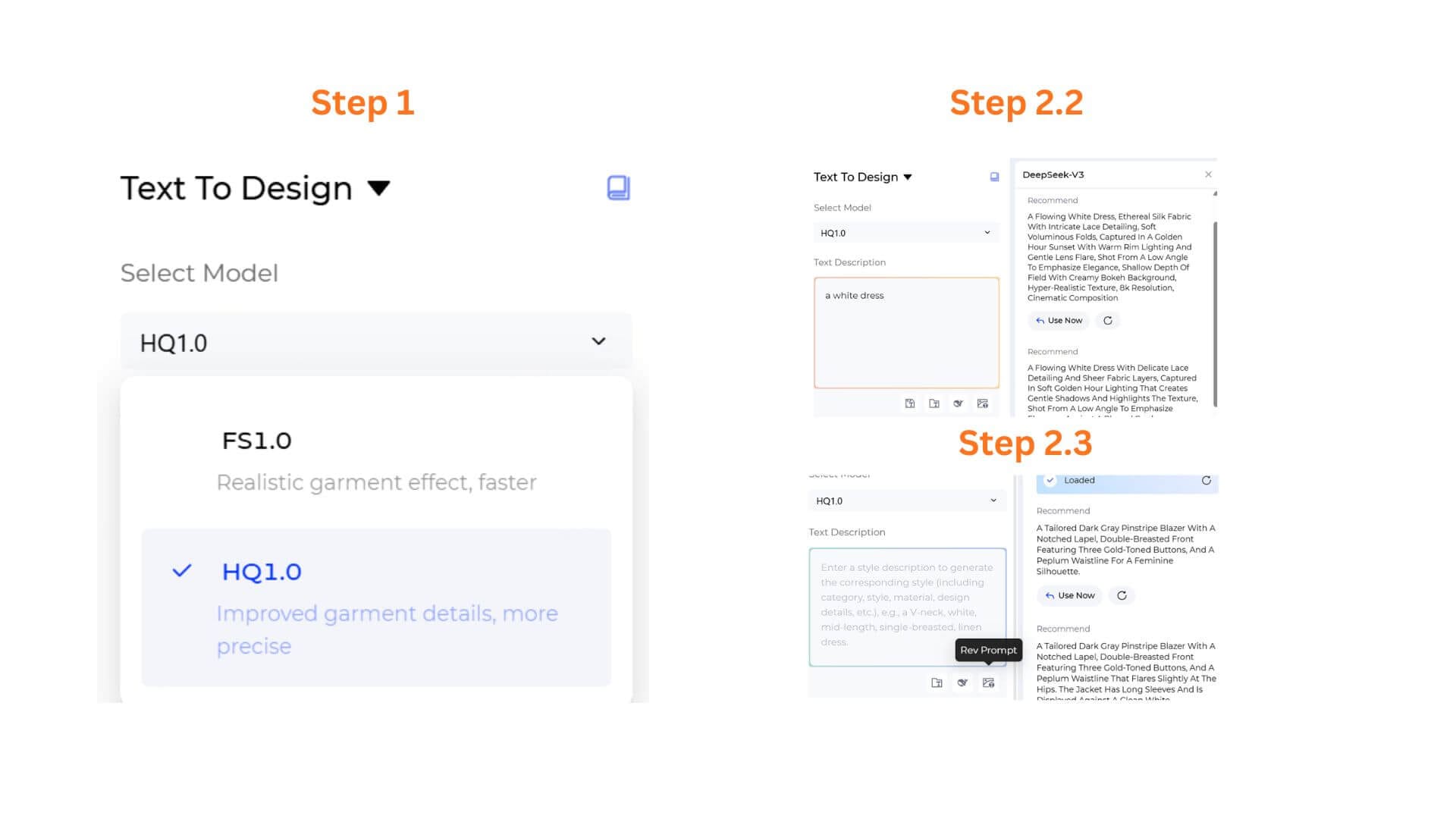
Step 1: Choose Your AI Generation Model
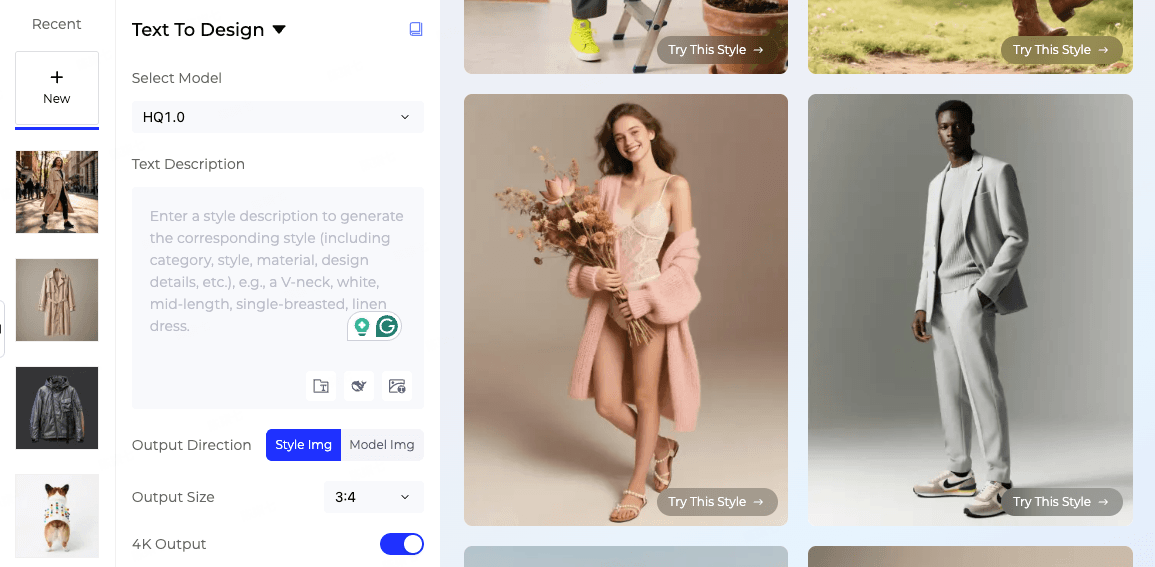
Select the processing engine according to your needs:
- FS1.0 (Fast Speed): Tailored for rapid brainstorming, initial concept exploration, and mood-boarding. Generates multiple design directions in seconds.
- HQ1.0 (High Quality): Optimized for ultra-refined fabric textures, commercial-grade presentation visuals, and retail-ready aesthetics.
Step 2: Input and Smart-Optimize Your Design Prompts
In the Text Description box, describe the garment you want — category, silhouette, fabric, color, and any unique design details.You can draft your prompts manually, or use our built-in smart tools to automatically generate industry-standard terminology.
2.1: Write Your Initial Concept
- Type your core idea directly, or use the icon toolbar beneath the text field to speed things up:
- Example: Type a simple text like "A White Dress".
2.2: Optimize with DeepSeek-V3 (The 'Opt Prompt' Button)
- Click the Opt Prompt icon to instantly expand your simple concept into several professional, highly descriptive prompt options powered by DeepSeek-V3. Review the suggestions and click Use Now to apply one to your text box.
2.3: Reverse-Engineer from Images (The 'Rev Prompt' Button)
- Have an inspiration photo, a trend image, or a competitor's product shot instead of words? Click the Rev Prompt icon, upload the reference image, and the system will analyze the construction, pattern, and fabric behavior — turning the visual into a precise text description inside your text box.
Step 3: Choose Your Output Direction
Customize how your generated garment should be presented based on your needs:
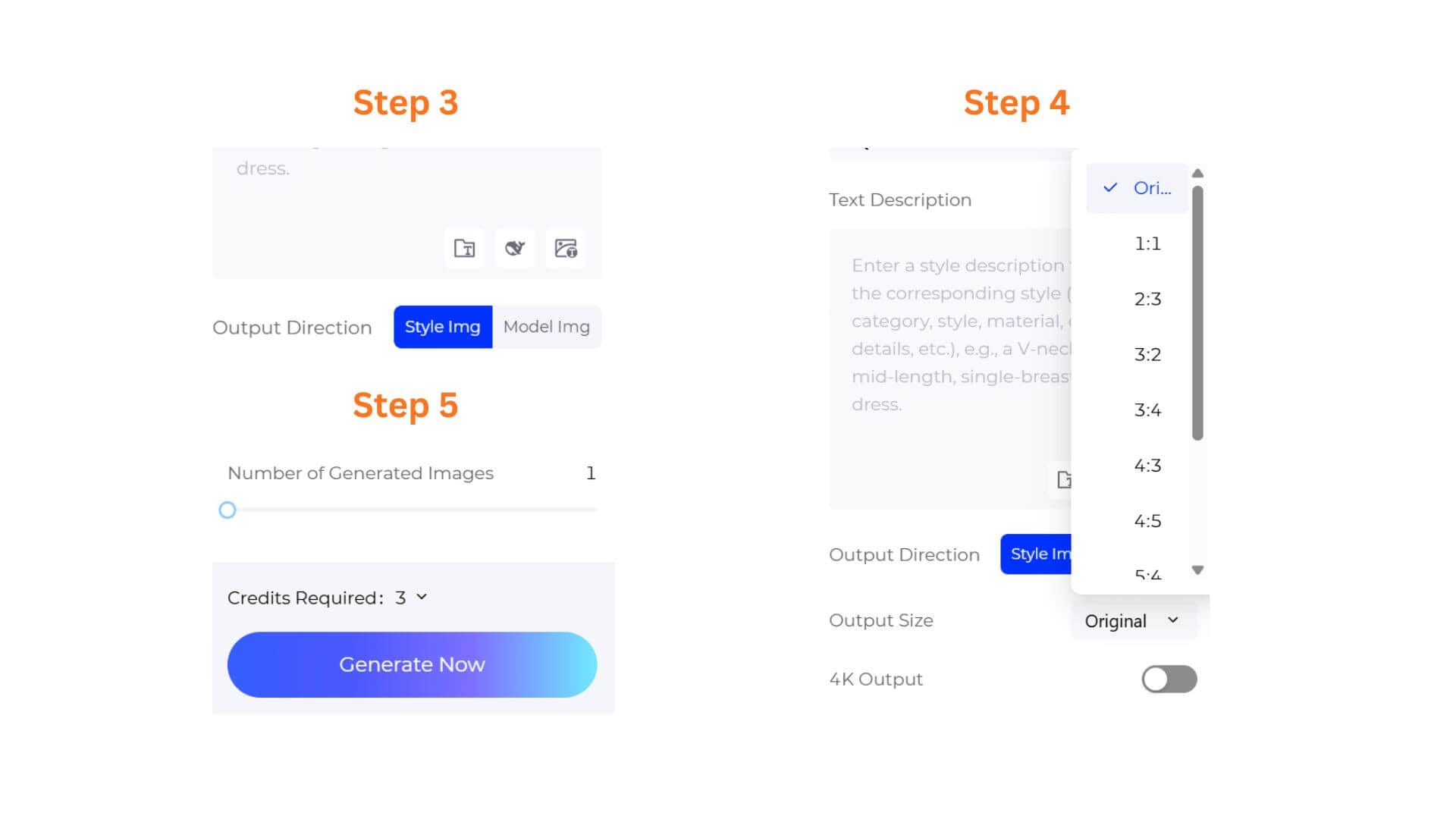
- Style Img: Clean, flat-lay or ghost-mannequin renderings focused entirely on the apparel product itself. Ideal for tech packs, design catalogs, and blueprints.
- Model Img: Instantly renders your garment on a photorealistic digital model. Perfect for e-commerce listings, social media lookbooks, and commercial marketing assets.
Step 4: (HQ1.0 only)Configure Output Size & Toggle 4K Resolution
If you selected HQ1.0, you can select an Output Size to match your intended use, and toggle 4K Output on for ultra-high-definition renders suited for client presentations or premium marketing assets. These options are not available on FS1.0.
Select an Output Size that matches your intended use.
Step 5: Set Batch Quantity & Generate
Use the slider to choose how many design variations you want in a single run — from 1 to 4 images. Check the Credits Required counter (default generation starts at 3 credits), then click the gradient Generate Now button. Within moments, your visual is ready — view, download, or continue editing it using Style3D's wider ecosystem and features (such as Style3D Studio).
Pro-Tips
Explore Diverse Application Scenarios
Use Text-to-Design for more than just initial garment sketching. It’s an incredibly versatile toolkit for building instant mood boards, high-converting social media marketing visuals, and rapid catalog previews for your global audience.
Bypass Post-Production Bottlenecks
Whether you are an independent creator styling a digital portfolio or a business owner managing an online storefront, physical sampling and model photography can be massive, slow-moving bottlenecks. By utilizing the Model Img workflow combined with 4K Output, you can completely eliminate traditional production costs. This powerful synergy allows anyone to render flawless, marketplace-ready apparel visuals and high-definition marketing assets in mere seconds.
Use Fashion Terminology
Incorporating industry-specific terms (e.g., “asymmetrical hemline,” “oversized lapels,” “satin finish”) improves AI fashion visualization accuracy and gives you more realistic outputs.
Refining Your Descriptions
When you have a fully formed design idea in mind, try to rely less on abstract buzzwords like "beautiful," "pretty," or "stunning." While these words express your excitement, the AI design engine works best when given descriptive elements like specific cuts, textures, or silhouettes. If you aren't familiar with industry terminology, don't worry! Simply type your basic ideas and let the Opt Prompt (DeepSeek-V3) tool effortlessly handle the creative perfection for you.
Frequently Asked Questions
Q: Why doesn't my generated design match what I imagined?
A: AI generates designs based on the information provided in your prompt. If important details such as silhouette, fabric, color, or construction are missing, the model will make its own assumptions.
For better results, describe your design as specifically as possible and include key garment attributes.
Q: What makes a good fashion prompt?
A: The most effective prompts usually follow this structure:
Garment Category + Silhouette + Material + Color + Style + Design Details
Example:
Women's oversized bomber jacket, black nylon fabric, cropped length, utility pockets, streetwear style.
More detailed prompts generally produce more accurate and controllable results.
Q: Should I use Opt Prompt?
A: Yes, especially if your prompt is short or lacks professional fashion terminology.
Opt Prompt automatically enriches your description with additional styling, material, and design details, helping generate more realistic and detailed apparel concepts.
Written by
What's Next?