How to Change Model Poses in Fashion Photos with AI?
Learn how to generate pose variations from a single fashion photo with Style3D Change Pose. This guide covers the whole workflow.

Introduction: What is Change Pose?
You have one strong model photo, but your product page, lookbook, and social channels each need a different pose. Reshooting every variation is expensive and slow, especially when you are running dozens of SKUs and each pose change means another studio booking, another fitting, and another round of retouching.
Change Pose changes that workflow. Upload a single model photo, choose a target pose from the reference library or describe it in text, and Style3D AI generates fresh variations while keeping the same model and garment. It is a fast way to build a full pose set from one shot instead of organizing multiple photoshoots.
Quick Start Guide
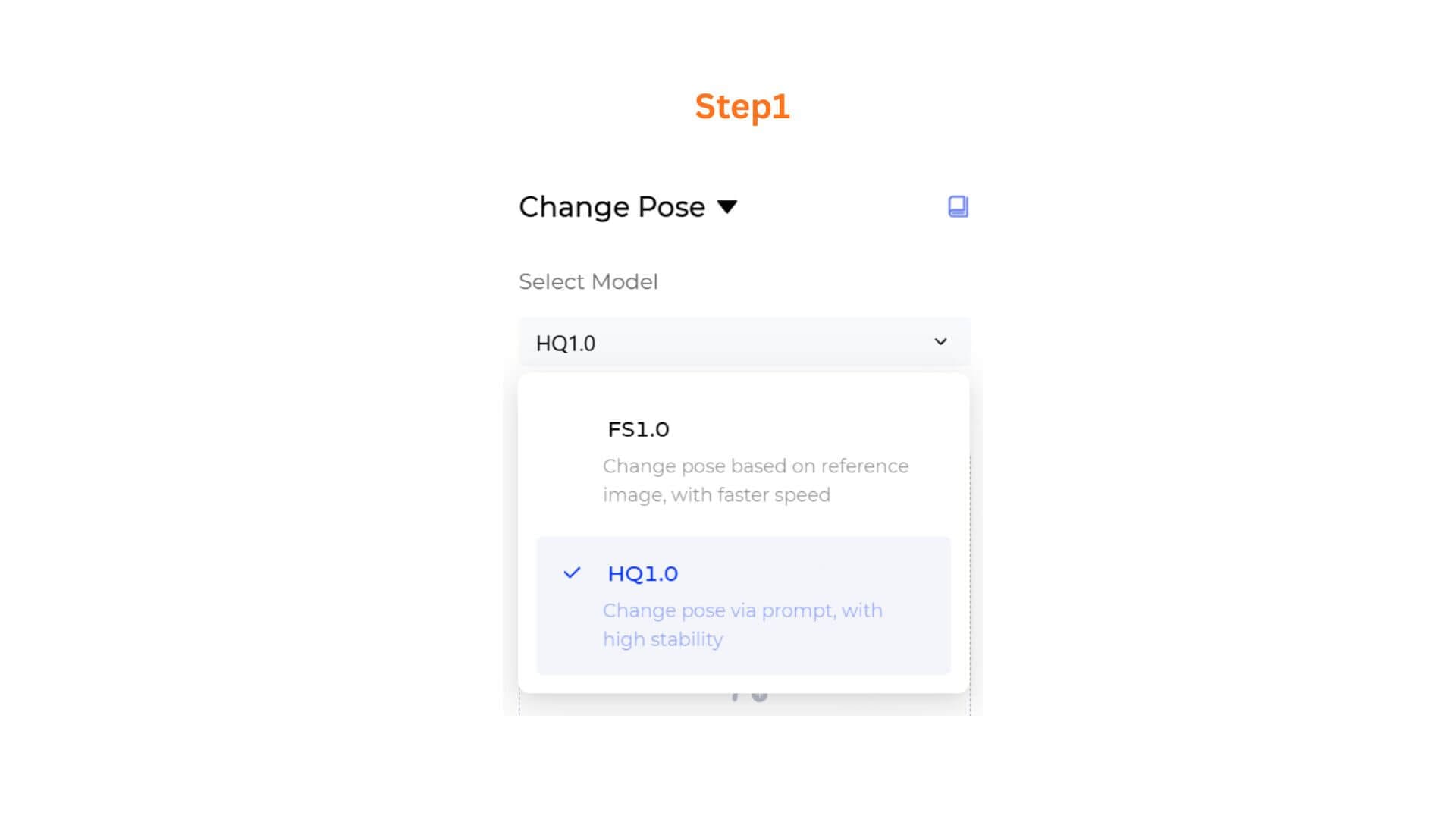
Step 1: Select the AI Model
At the top of the workspace, open the Select Model dropdown. Choose the model that fits your quality and speed needs.
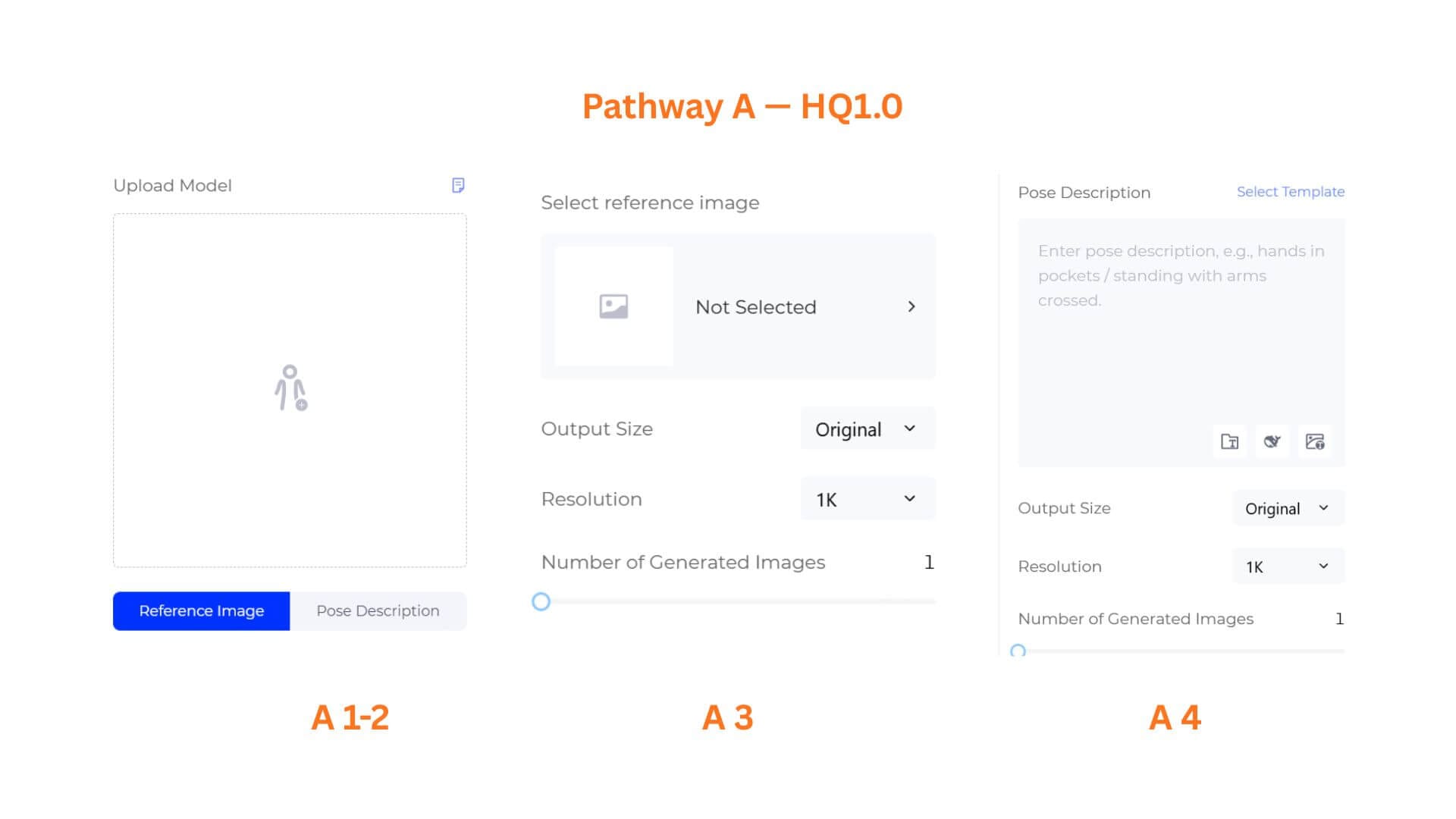
Pathway A — HQ1.0
HQ1.0 is the higher-quality model. It supports both reference-image and text-description pose input.
A1. Upload Your Model Image
Click the Upload Model area and select the model photo you want to edit. The image should show the garment clearly on the model.
Supported Image formats: JPG、JPEG、PNG、WEBP、AVIF、BMP,Size range: 1 KB - 20 MB,Maximum image width and height: 4096x4096px
A2. Choose an Input Tab
Two tabs appear below the upload area. Pick the one that matches your workflow.
- Reference Image — Select a pose.
- Pose Description — Describe the target pose in text.
A3. Reference Image Mode
- Click Select reference image (currently showing Not Selected). Pick the pose you want.
- Set Output Size (default is Original).
- Choose your preferred resolution.
- Use the slider to set Number of Generated Images.
A4. Pose Description Mode
- Enter a pose description in the text box, for example: "Enter pose description, e.g., hands in pockets / standing with arms crossed."
- Click Select Template to choose from saved pose templates.
- Use the three helper icons below the text box: Prompt Manager, Opt Prompt, Rev Prompt.
- Set Output Size (default is Original).
- Choose your preferred resolution.
- Use the slider to set Number of Generated Images.
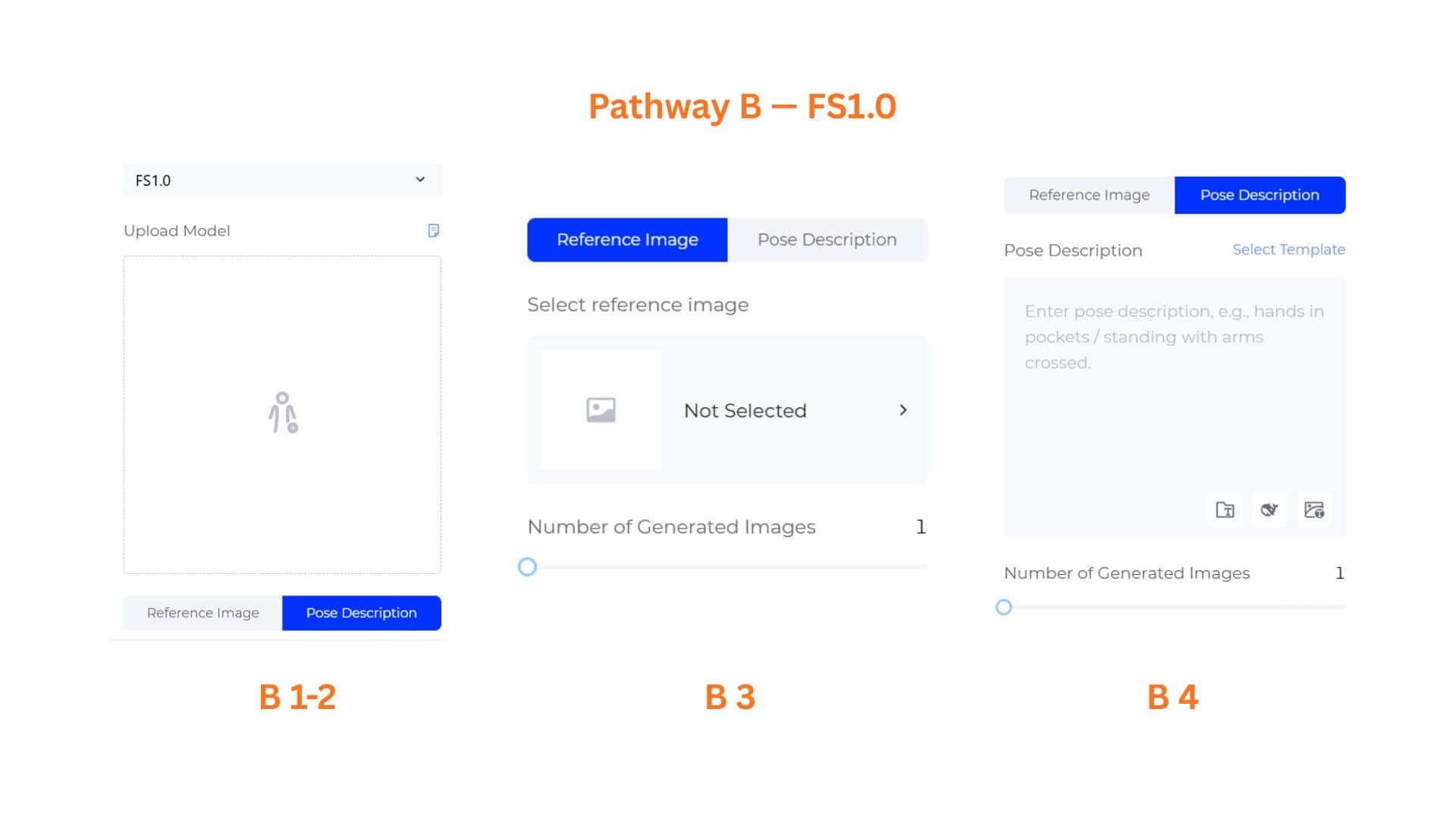
Pathway B — FS1.0s
FS1.0 is the faster model. It also supports both reference-image and text-description pose input.
B1. Upload Your Model Image
Click the Upload Model area and select the model photo.
Supported Image formats: JPG、JPEG、PNG、WEBP、AVIF、BMP,Size range: 1 KB - 20 MB,Maximum image width and height: 4096x4096px
B2. Choose an Input Tab
Pick either Reference Image or Pose Description.
B3. Reference Image Modes
- Click Select reference image and choose a pose from the library.
- Use the slider to set Number of Generated Images.
B4. Pose Description Mode
- Enter a pose description in the text box.
- Click Select Template to reuse saved pose templates.
- Use the three helper icons below the text box: Prompt Manager, Opt Prompt, and Rev Prompt.
- Use the slider to set Number of Generated Images.
Step 2: Generate Your Pose Variations
Click Generate Now.
Pro-Tips
- Start with a reference pose for speed. If you already have a pose you like, use the Reference Image tab in either model for fast, predictable results.
- Use Pose Description for custom directions. When the reference library doesn't have the exact pose you need, describe it in text. This works in both HQ1.0 and FS1.0.
- Pair with Change Model & BG. Use Change Model & BG to swap the model or background first, then use Change Pose to adjust posture.
Frequently Asked Questions
Q: What is the difference between HQ1.0 and FS1.0?
A: HQ1.0 produces higher-quality results, supports 4K output. FS1.0 is faster. Both support Reference Image and Pose Description input.
Q: Can I use my own pose reference image?
A: The current interface shows Select reference image with a library picker. If your account supports custom uploads, check the options inside that picker.
Q: Will the garment look distorted in the new pose?
A: The AI preserves the garment's fit, drape, and color while changing the pose. Very extreme pose changes may produce less natural results, so test and iterate.
Meta title: How to Change Model Poses in Fashion Photos with AI
Meta description: Change model poses while keeping the same garment with Style3D AI. Use reference poses or text descriptions in HQ1.0 or FS1.0 mode.
Excerpt: Learn how to generate pose variations from a single fashion photo with Style3D Change Pose. This guide covers HQ1.0 and FS1.0 pathways, Reference Image and Pose Description tabs, credits, and 4K output.
Written by
What's Next?