How to Swap Models and Backgrounds with AI?
Replace the model, background, or both in fashion photos with Style3D Change Model & BG. This guide covers the whole workflow.

Introduction: What is Change Model & BG?
Your garment photos are ready, but the model or background no longer fits the season, channel, or campaign. Reshooting is expensive and slow. For small brands and ecommerce teams, that cost multiplies across every SKU, and seasonal refreshes often get delayed because new photography is simply not practical.
Change Model & BG changes that workflow. Upload one existing fashion photo and replace the model, the background, or both in a single generation. Choose replacement assets from the Style3D libraries in Specify mode, or describe exactly what you want in Generate mode. The original garment stays intact while the AI rebuilds the scene around it, so you can refresh entire catalogs without organizing a new shoot.
Quick Start Guide
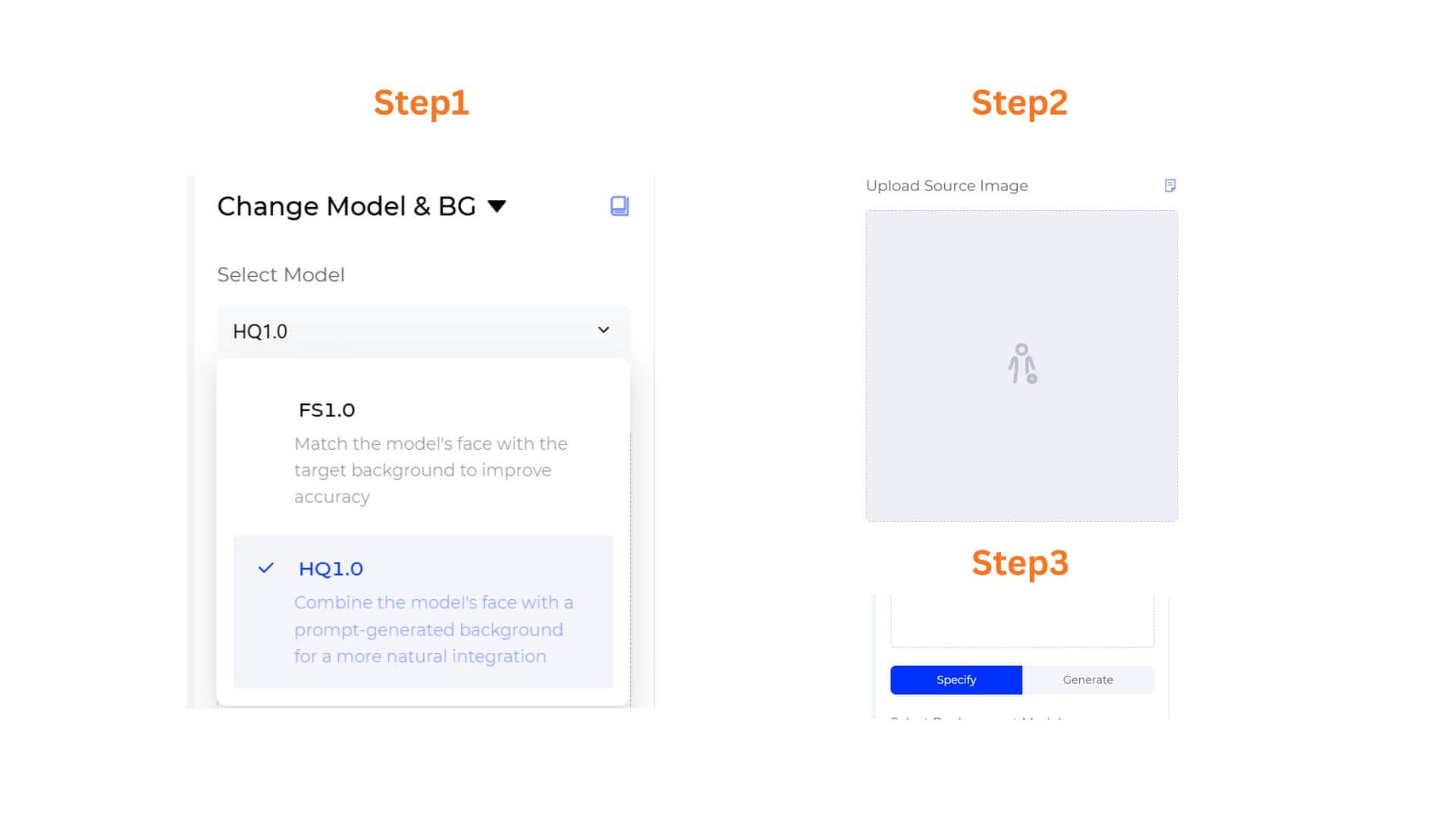
Step 1: Select the AI Model
At the top of the workspace, open the Select Model dropdown. Choose the one that matches your quality needs and workflow.
- FS1.0 — Faster generation, lower credit cost.
- HQ1.0 — Higher output quality; the interface and credit cost match FS1.0 for this feature.
Step 2: Upload Your Source Image
Click the Upload Source Image area and select the fashion photo you want to edit.
Accepted formats: JPG、JPEG、PNG、WEBP、AVIF、BMP,Size range: 1 KB - 20 MB,Maximum image width and height: 4096x4096px.
Avoid Flat-laid image/Hanging shot image, Mannequin image without limbs, or Incomplete product.
Step 3: Choose a Generation Mode
Below the upload area, two tabs appear: Specify and Generate. Pick the one that matches your workflow. The rest of the settings change based on this tab.
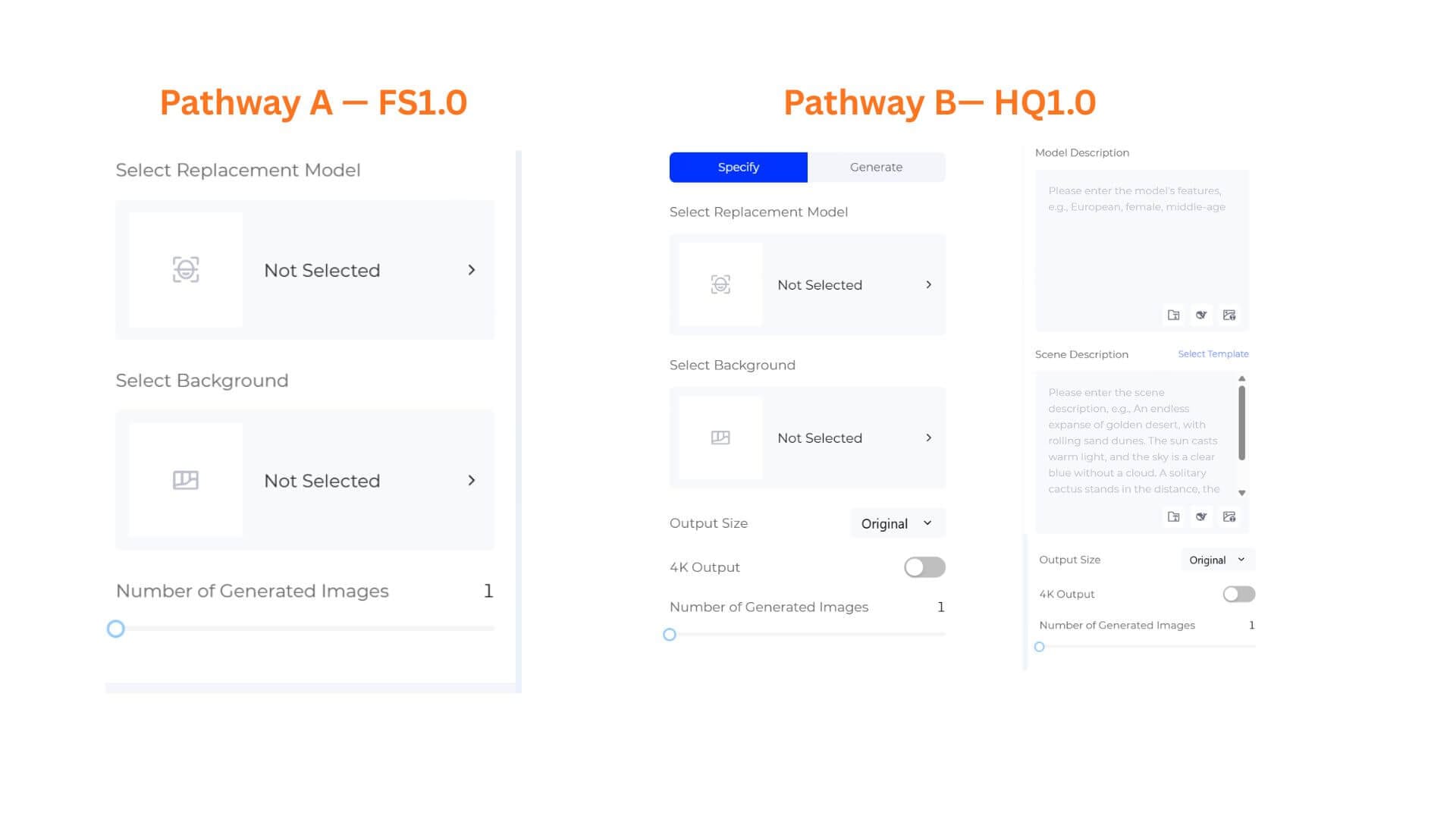
Pathway A — FS1.0
Specify Mode Available
Use this when you want to select a replacement model and background from the Style3D libraries.
- Select Replacement Model — Click the row that currently shows Not Selected. Pick the model you want to use.
- Select Background — Click the row that currently shows Not Selected. Pick a scene or backdrop.
- Number of Generated Images — Use the slider to choose how many variations to generate (default is 1).
Pathway B — HQ1.0
HQ1.0 produces higher-resolution, more refined results when detail matters.
B1. Specify Mode
- Select Replacement Model — Click the row that shows Not Selected and pick a model.
- Select Background — Click the row that shows Not Selected and pick a background from the library.
- Output Size — Choose from the dropdown. Default is Original.
- 4K Output — Toggle ON for high-resolution output.
- Number of Generated Images — Set the desired count with the slider.
B2. Generate Mode
- Model Description — Enter the model's features. Placeholder: "Please enter the model's features, e.g., European, female, middle-age." Use Prompt Manager, Opt Prompt, or Rev Prompt for help.
- Scene Description — Enter the background or scene description. Placeholder: "Please enter the scene description, e.g., An endless expanse of golden desert, with rolling sand dunes..."
- Output Size — Default is Original.
- 4K Output — Toggle ON for campaign-ready resolution.
- Number of Generated Images — Use the slider to set the count.
Step 4: Generate Your New Image
Click Generate Now.
Pro-Tips
- Turn on 4K Output for hero images. Both modes support 4K. Use it for campaign hero shots and lookbooks; stick to standard resolution for bulk listings.
- Seasonal refresh without reshoots. Swap a background to match a holiday or campaign season in minutes, not days.
- Pair with Change Pose. After swapping the model and background, use Chang Pose to adjust posture for a fully fresh image.
Frequently Asked Questions
Q: Which AI model should I choose?
A: Use FS1.0 for faster, lower-cost generations. Use HQ1.0 when you need higher output quality.
Q: Can I use my own model or background images?
A: Yes. Click the row that shows Not Selected. You can upload a portrait or of the model or a scene image.
Q: Can I change only the background and keep the original model?
A: In Specify mode, leave the replacement model unselected and only choose a background. In Generate mode, keep the model description minimal or match the original model.
Written by
What's Next?