
How to Preview Curtains in Real Room Scenes with AI?
Upload a curtain photo and visualize it into realistic interior scenes in seconds with AI. This guide covers the whole workflow.

Introduction: What is Curtain Try-On?
Selling curtains online is hard. A folded fabric swatch or flat product photo does not show buyers how the curtain hangs, how light passes through the material, or how it fits a room. Physical staging is expensive and does not scale across a full catalog, especially when you need to show the same curtain in multiple interior styles.
Curtain Try-On changes that workflow. Upload a curtain photo, choose an interior scene from scene tags or upload your own background, and Style3D AI places the curtain into the room with natural draping, lighting, and context. You get an interior-ready preview in seconds without building a physical set or hiring a photographer.
Quick Start Guide
Step 1: Select the AI Model
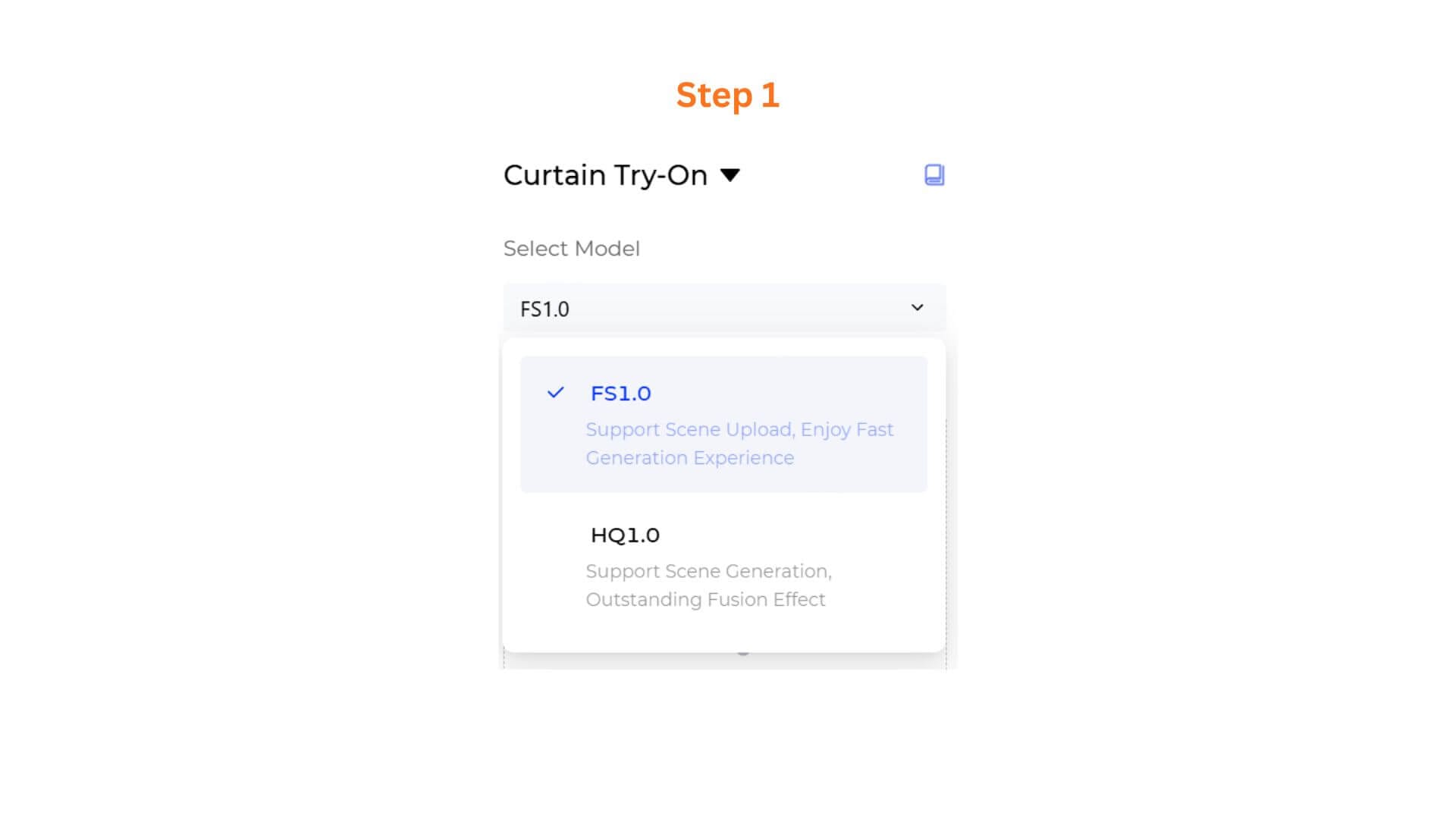
At the top of the workspace, open the Select Model dropdown. You will see two options:
- HQ1.0 — Support Scene Generation, Outstanding Fusion Effect.
- FS1.0 — Support Scene Upload, Enjoy Fast Generation Experience.
Pathway A — HQ1.0
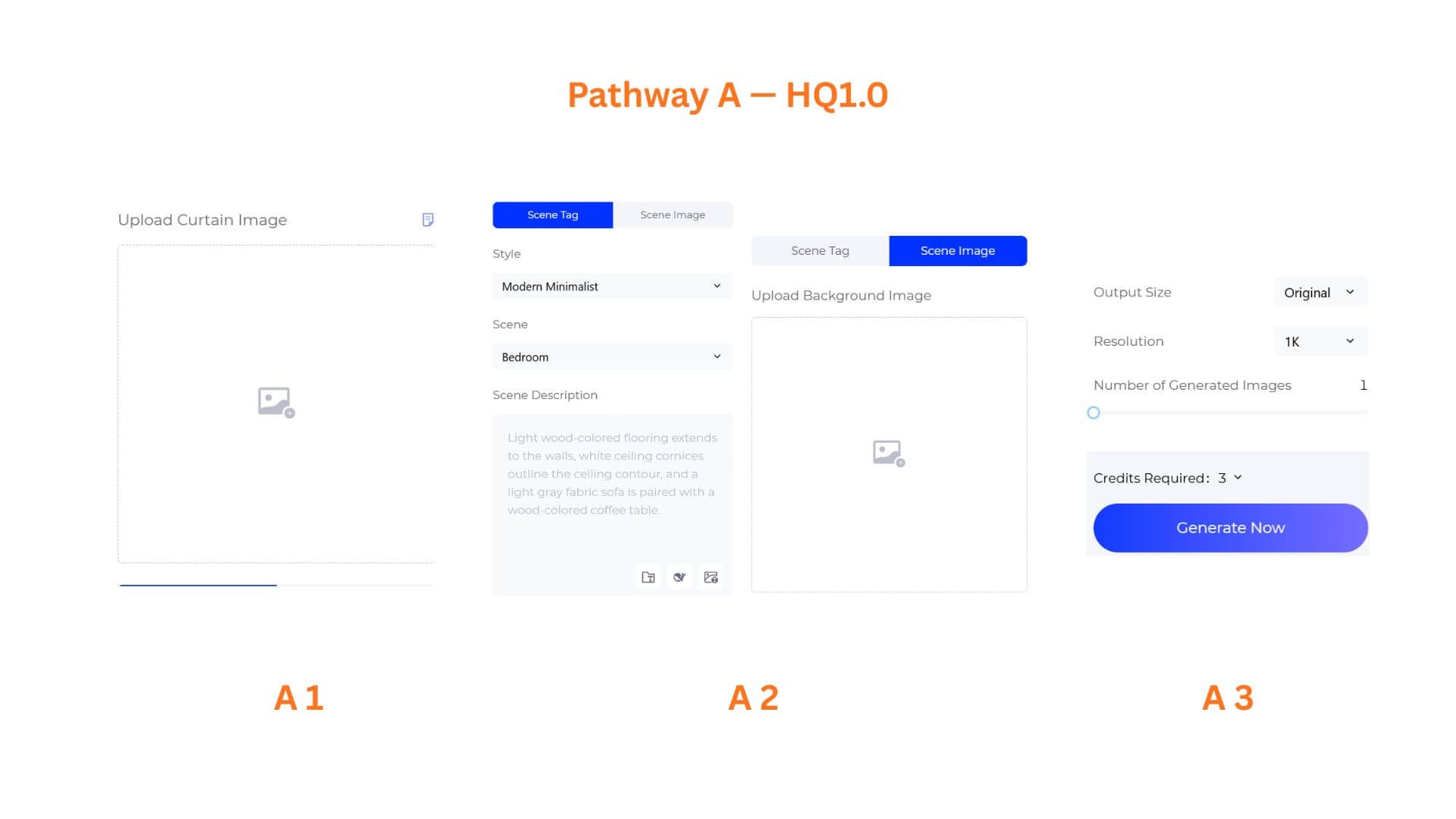
HQ1.0 creates a matching interior scene from scene tags, or fuses your curtain into a custom background you upload.
A1: Upload the Curtain Image
Click Upload Curtain Image area and select a clear product photo of the curtain. A well-lit image showing the full panel, texture, and pattern produces the cleanest drape and fold result.
Supported Image formats: JPG、JPEG、PNG、WEBP、AVIF、BMP,Size range: 1 KB - 20 MB,Maximum image width and height: 4096x4096px
A2: Choose a Scene Input Tab
Two tabs appear below the upload area. Pick the one that matches your workflow.
Scene Tag — Build a room from style, room type, and an description.
Scene Image — Upload your own interior photo as the background.
Scene Tag Mode
- Style — Pick an interior style such as Modern Minimalist, Nordic, European Classical, Light Luxury, Chinese, Neo-Chinese, Industrial, or Pastoral.
- Scene — Pick a room type such as Bedroom, Living Room, Study Room, Dining Room, Kitchen, or Bathroom.
- Scene Description — Add a prompt to refine the interior. For example, "Light wood-colored flooring extends to the walls, white ceiling cornices outline the ceiling contour, and a light gray fabric sofa is paired with a wood-colored coffee table."
Scene Image Mode
Click Upload Background Image area and select your own interior photo. HQ1.0 will fuse the curtain into your uploaded room with realistic draping and lighting.
A3: Set Output Options and Generate
Choose Output Size (default is Original) and your preferred resolution.
Drag the Number of Generated Images slider to set how many variations you want. Then click Generate Now.
Pathway B — FS1.0
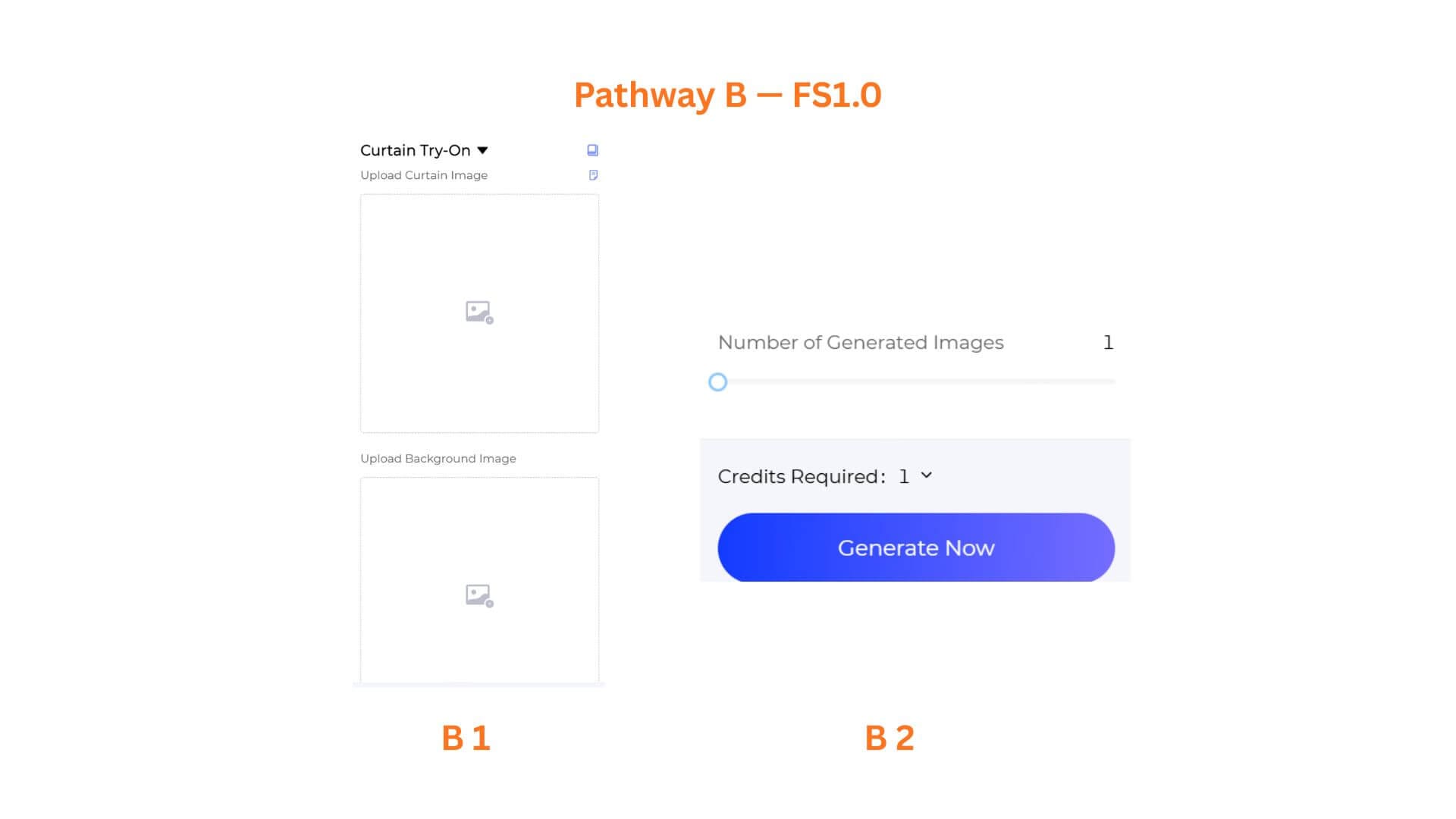
FS1.0 is a fast, scene-upload workflow. You provide both the curtain and the background, and the AI places the curtain into the room quickly.
B1: Upload Both Images
Upload two images:
- Upload Curtain Image — The curtain product photo.
- Upload Background Image — The interior scene where the curtain should be placed.
B2: Set Output Options and Generate
Adjust Output Size, and set the Number of Generated Images. Then click Generate Now.
Pro-Tips
- Match the curtain to the room mood. Sheer fabrics look best in bright, airy bedrooms or living rooms. Heavy drapes suit moodier, classic interiors.
- Test one curtain across multiple scenes. Generate the same curtain in a modern living room, cozy bedroom, and sunlit study so customers can picture it in their own home.
- Use Scene Tag when you do not have a room photo. It builds a matching interior from style and room type alone. Use Scene Image when you have a specific background you want to keep..
- Pair with AI Marketing Copy. After generating room previews, use AI Marketing Copy to write room-specific descriptions such as "Soft linen drapes frame this sun-filled living room with natural elegance."
Frequently Asked Questions
Q: Can I use my own room photo as the background?
A: Yes. In HQ1.0, switch to the Scene Image tab and upload your background. In FS1.0, upload your background directly in the Upload Background Image area.
Q: What curtain styles work best?
A: Standard window curtains, drapes, sheers, and panel curtains all produce strong results. Highly unusual shapes such as swag valances or irregular panels may need additional iterations.
Q: What are the upload requirements for the curtain image?
A: Use a clear, well-lit photo showing the full curtain panel. Avoid cropped, wrinkled, or overly shadowed images for the best drape and fold result.
Written by
What's Next?