How to Turn Reference Images into Product Videos with AI?
Upload reference images, add description, and generate a smooth short product video with AI in minutes. This guide covers the whole workflow.

Introduction: What is Reference To Video?
A single fashion photo can sell a product, but a short video sells it harder. Showing how a garment drapes, how a model walks, or how fabric catches the light drives engagement on TikTok, Instagram, and ecommerce — yet producing those clips still requires studios, models, and editors that small brands and indie designers rarely have time or budget for.
Reference To Video changes that workflow. Upload up to 9 reference images, optionally add audio and a reference video, write a content description, and Style3D AI generates a smooth short video with stable motion and strong details. You get campaign-ready video content in minutes without a camera crew or post-production pipeline.
Quick Start Guide
Step 1: Upload Your Reference Images
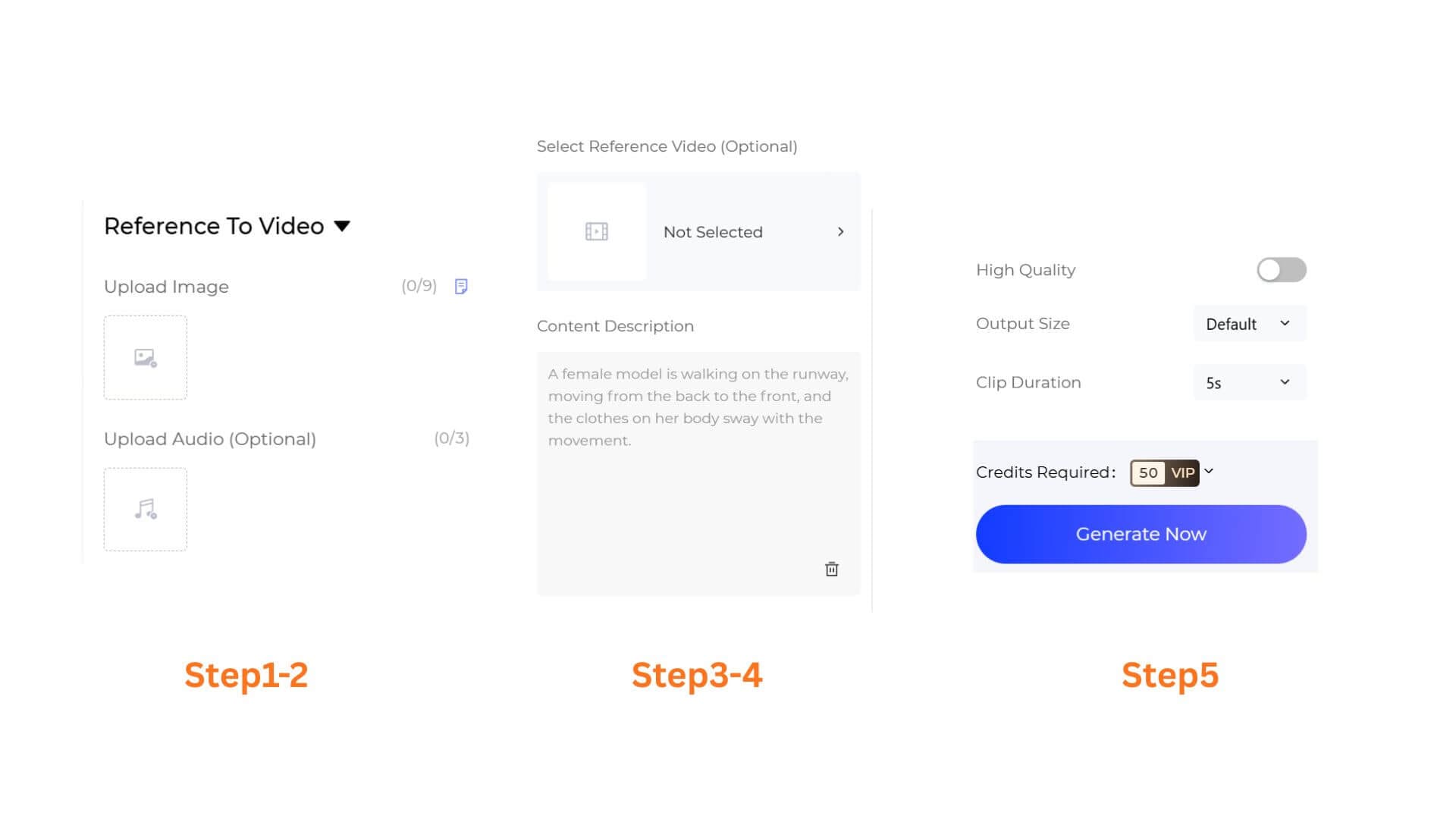
Click the Upload Image area to add up to 9 images. These images are the visual references the AI uses to build your video — the model, garment, and scene all draw from them.
Image requirements
- Supported formats: JPG, JPEG, PNG, WEBP, AVIF
- File size: must be under 20 MB
Step 2: Add Audio (Optional)
Click the Upload Audio (Optional) area to add up to 3 audio files. This is useful when you already have a soundtrack, voiceover, or product-suitable BGM and want the AI to align the video to it.
Step 3: Select a Reference Video (Optional)
Click Select Reference Video (Optional) to choose a reference video. The AI will use its motion style as a starting point for your generated video. Leave it unselected to let the AI create original motion from your images and content description.
Step 4: Write a Content Description
In the Content Description text box, describe the motion, scene, and story you want the video to show. Be specific about the model's actions, the environment, and how the garment should move.
Step 5: Configure Video Settings and Generate
Scroll down to the output settings:
- High Quality — Toggle ON for higher-resolution, more refined output. Default is OFF.
- Output Size — Choose the output resolution from the dropdown.
- Clip Duration — Choose the total video length. Default is 5s.
Click Generate Now to start the video generation. Review the result, adjust your description or settings, and regenerate as needed.
Pro-Tips
- Write motion-focused descriptions. Phrases like "the model walks toward the camera, fabric swaying with each step" work better than "a nice video." Specific motion language guides the AI.
- Pair images with a reference video for signature motion. If your brand has a specific camera move or pace, select a matching reference video to keep the output on-brand.
- Turn on High Quality for final output. Use the standard setting for quick drafts, then switch to High Quality for the final selects that need extra polish.
- Stack with Virtual Try-On results. Use images from Virtual Garment Try-On or Outfit Try-On as reference images, then bring them to life as a short video.
Frequently Asked Questions
Q: What if I don't have a reference video?
A: Reference Video is optional. Without one, the AI generates original motion based on your images and content description. Use a reference video only when you need a specific motion style.
Q: How long does generation take?
A: Generation time depends on clip duration, quality setting, and the number of reference images. High Quality and longer clips take more time than the standard 5s setting.
Q: What if my content description is too short?
A: The AI works best with specific motion language. Aim for at least one or two sentences describing the model's action, the environment, and how the garment should move.
Written by