
PNG Color Changer: Why the Alpha Channel Decides Everything
Transparency is a range rather than a switch, and the pixels in between decide what a recolored PNG looks like on any background other than the one it was made on.
Recoloring a PNG looks like the simplest possible version of changing a color. The artwork is already isolated, the background is already gone, and there is nothing to select.
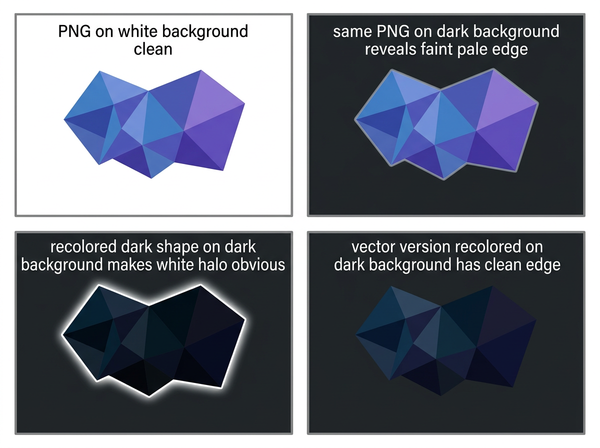
Then the recolored file goes onto a dark background and there is a pale outline around everything.
Transparency is a range, not a switch
The useful mental correction is that a pixel is not either present or absent. It carries a degree of opacity, and the pixels along every boundary sit somewhere in the middle — partly artwork, partly nothing.
This is what makes a PNG look smooth. Without those intermediate pixels, every curve would be a staircase. They exist to make edges appear continuous, and they do it by being partly transparent.
Everything difficult about recoloring a PNG happens in that band, which is the same band that causes trouble in any cutout work. Here it is not a question of where the edge is; the edge is already decided. It is a question of what those in-between pixels are made of.
Transparent pixels still hold color
A fully transparent pixel is invisible. It is not empty.
Most formats store transparency alongside color rather than instead of it, so a pixel with no opacity still has color values recorded for it — usually whatever was there before the background was removed. Nothing displays them, so nothing prompts anyone to look.
Certain operations bring them back. Some conversions, some flattening steps, and some ways of applying a color change treat the color data as authoritative and the transparency as separate, at which point the hidden values appear. What emerges is a faint version of whatever background the artwork was originally cut from.
This is why a file that has been through several tools sometimes develops an edge that was not there when it was made. Nothing corrupted it. Something looked at data that had been sitting in the file all along.
The practical consequence is that a PNG’s history matters and is not recorded anywhere. A file that has been opened, exported, converted, and re-saved across several applications may behave differently from one that went directly from its source to its destination, and neither carries any indication of which it is. Where an asset has to be reliable, keeping the original working file is worth more than keeping a tidy PNG.
Premultiplied alpha bakes a background into the edges
There are two conventions for storing partially transparent pixels, and the difference matters exactly once — at the moment you change the color.
In one, color and transparency are kept separate. In the other, the color values have already been multiplied by the transparency, which means the color of whatever the artwork was composited against is mixed into every edge pixel.
If a file was produced the second way against a white background, white is in the edges. Recolor the artwork and the artwork changes; the white does not, because it is not part of the color being replaced. Place the result on anything dark and it appears as a pale halo tracing every contour.
This is a different cause from the halo that appears when artwork is generated with a background the model invented and then cut out — there, the background was fabricated and then removed imperfectly. Here, nothing was removed imperfectly. The background was mathematically combined into the file and is doing exactly what the format specifies.
Same symptom, different origin, and the fix differs accordingly. Telling them apart is worth the minute it takes, because one is repaired by regenerating the artwork and the other by re-exporting the file with a different transparency setting — and applying the wrong remedy produces no change at all, which is usually read as the problem being unfixable.
Semi-transparent pixels take less of the new color
Even with a cleanly stored file, edge pixels do not recolor the way solid ones do.
A pixel that is half opaque receives half the new color. The result along every boundary is a weakened version of the replacement — which, if the original color was darker or lighter, reads as a residue of the old one.
The effect is small on a large solid shape and pronounced on anything with fine detail. Thin lines, small type, and intricate artwork are made largely of edge pixels, so a much greater share of the image is in the partial state where recoloring is partial.
Which produces a practical asymmetry: the more detailed the artwork, the worse it recolors, independent of how carefully the work is done.
It also means the failure scales with display size in an unhelpful direction. At a small size the partial pixels blend and the artwork looks acceptable; enlarge it and the proportion of the image made of edge does not change, so the weakened band grows with everything else. Artwork that recolors adequately for a website can be unusable at a size where the edge is visible.
Vector has no alpha problem
An SVG stores color as an attribute of a shape rather than as values in pixels. There are no edge pixels, because there are no pixels — the edge is a mathematical boundary rendered fresh at whatever size it is displayed.
Change the color and it changes exactly, everywhere, with no band, no residue, and no hidden data. The operation is reversible, and repeating it does not degrade anything.
This is the reason vector is the right container for anything whose edges have to stay crisp and whose color may need to change — logos, marks, flat graphic elements, anything applied across a range of colorways.
It is also why a logo supplied as a PNG and a logo supplied as an SVG produce different results from an identical request, and why the difference is invisible until somebody looks at an edge.
What to check before recoloring a PNG
• View it on a dark background. Halos are invisible on white and obvious on black, which is why they survive every review conducted against a white canvas.
• Look at the alpha channel directly. Most editors can display it, and a soft, wide transition tells you how much of the artwork sits in the partial state.
• Check for a matte. If edge pixels carry a consistent tint of one color, that color was composited in and will not leave with a recolor.
• Zoom past a hundred percent. The band is a few pixels wide and disappears entirely at fit-to-screen, which is where files get approved.
• Ask whether a vector source exists. For flat artwork it usually does somewhere, and finding it resolves everything above.
The last one is worth trying first, because it is the only item on the list that removes the problem rather than measuring it. It is also the one most often skipped, since a PNG that arrived by email feels like the asset rather than like a copy of one.
When PNG is the wrong container
PNG is a display format. It is excellent for delivering finished artwork to a screen and poor as a working file for anything that will be modified.
Flat graphics that need recoloring belong in vector. Artwork with soft or photographic edges — a rendered graphic, a textured element — cannot be vector and should be kept in a layered working file where the edge treatment can be reconstructed rather than in a flattened PNG where it cannot.
Where a PNG is the only thing available, the practical approach is to treat it as a final asset rather than as a source. Recolor it if the edges are simple and the destination background is light. For anything else, the effort spent fighting the alpha channel is usually more than the effort of recreating the artwork.
FAQ
Can I remove a white matte from an existing PNG?
Tools exist that attempt it, and success depends on how the file was made and how much edge detail there is. It works reasonably on simple shapes and poorly on fine artwork, which is the same detail-dependency that governs recoloring itself.
Does saving at higher quality help?
PNG is lossless, so quality settings are not the variable. What matters is how transparency was stored and what the artwork was composited against before saving.
Why does my logo look fine on the website and wrong in print?
Print backgrounds are frequently not white, and print reproduces edge detail that a screen at normal size does not. Both factors expose an edge band that was present all along.
Is this specific to PNG?
Any raster format supporting transparency behaves this way, since the underlying issue is that edges are made of partially transparent pixels. PNG is simply the format most people encounter.
Should I ask suppliers for vector logos?
For anything that will be recolored, resized, or printed, yes — and asking at the point the asset is first supplied is considerably easier than tracing the original years later.
What if the artwork was generated and no vector exists?
Then the choice is between accepting the edge behavior, converting to vector where the artwork suits it, or recreating the element. Which is appropriate depends on how much the edges matter in the intended use.
Where this leaves you
Look at the file on black before deciding anything.
Every problem in this article is invisible against white and visible against dark, which means the standard review — artwork on a white canvas, viewed at a size that fits the screen — is conducted under precisely the conditions that hide all of them. The band is a few pixels wide, it has been in the file since it was made, and it will appear the first time somebody places the artwork somewhere that is not the background it was born against.
Put it on black and zoom in
Take any PNG you are about to recolor, drop it onto a black background, and zoom past a hundred percent along an edge. What you see is what the file has always contained and what no review against white has ever shown you. If there is a pale band, recoloring will not remove it — it was composited in rather than applied on top. That is the moment to go looking for a vector original instead. See how flat artwork moves into a vector form.
→ https://www.style3d.ai/image-editing-tools/image-to-vector
Written by